
Views: 31
If you’ve ever visited a major e-commerce site or a large business website and noticed how their navigation menu drops down to reveal organized columns of links, images, and grouped content — that’s a mega menu. And if you’re building on Weebly, you’ve probably realized the platform’s built-in navigation doesn’t support this kind of rich dropdown experience. The good news: you can add a professional Weebly mega menu to any Weebly site without writing a single line of code, using the Codoplex Mega Menu app.
This post walks through what a mega menu is, why Weebly sites benefit from having one, how the Codoplex Mega Menu app works, and who should consider installing it. Whether you’re running a Weebly store with dozens of product categories or a service business with multiple offerings, a Weebly mega menu can transform your site’s navigation from functional to genuinely professional.
Let’s start with the basics and work through everything you need to know to implement a mega menu on your Weebly website today.
In This Guide
What Is a Mega Menu?
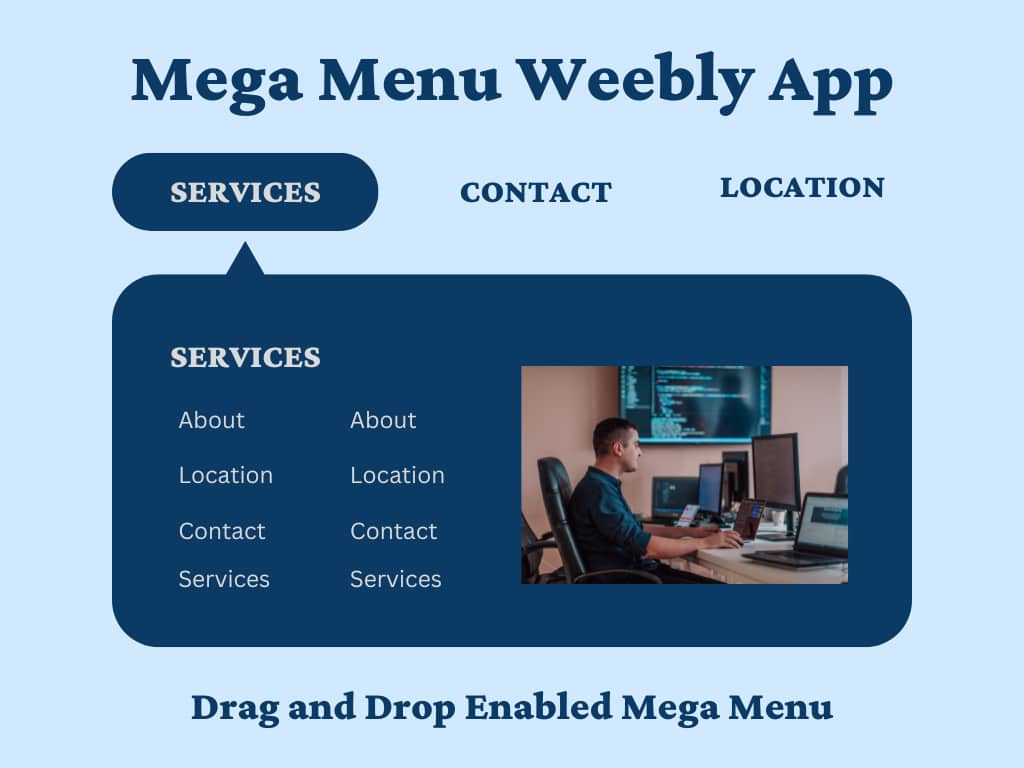
A mega menu (sometimes called a “mega dropdown” or “large navigation menu”) is a type of website navigation that expands to show a large, multi-column panel when a user hovers over or clicks a top-level menu item. Unlike a standard dropdown menu that shows a simple vertical list of links, a mega menu can display:
- Multiple columns of links organized by category or subcategory
- Images or icons alongside text links to provide visual context
- Headings and subheadings to group related content logically
- Featured content areas like promotional banners, highlighted products, or call-to-action buttons
- Custom text blocks to add descriptions, contact info, or contextual information
The defining characteristic of a mega menu is visual complexity managed elegantly. When implemented well, a mega menu makes navigating a large website easier, not harder — it shows visitors the full breadth of what’s available without forcing them to click through multiple layers of nested dropdowns or hunt through a crowded sidebar.
Major retailers like Amazon, Target, and Best Buy use mega menus. So do large media sites, SaaS companies, and any organization managing a site with more than a dozen top-level pages. It’s a proven navigation pattern for sites with complex information architecture — and it’s exactly what Weebly’s default navigation can’t deliver on its own.
Why Weebly Websites Need a Mega Menu
Weebly’s built-in navigation menu is perfectly functional for small, simple websites. It lets you create a horizontal menu bar with dropdown links. But it has significant limitations once your site grows beyond 10–15 pages or you need to present content in a more structured way:
1. Weebly’s Default Menu Only Supports Single-Column Dropdowns
When you add a dropdown to Weebly’s navigation, it appears as a narrow, single-column list. If you have 15 subcategories under “Products” or “Services,” that dropdown becomes a long, scrolling list that’s difficult to scan and makes your site look cluttered. A Weebly mega menu solves this by arranging those 15 links into 3 columns of 5, or 2 columns with headings — instantly more scannable and professional.
2. No Visual Content in Dropdowns
Weebly’s native navigation doesn’t allow you to add images, icons, or formatted text inside dropdown menus. Everything is plain text links. This makes it nearly impossible to create the kind of visually rich navigation that draws attention to key pages or helps visitors understand what each section contains before they click. A mega menu for Weebly adds this capability — you can include thumbnail images next to product categories, feature a “Sale” banner inside a dropdown, or add a short description beneath each link.
3. Limited Flexibility for Complex Site Structures
If you’re building a Weebly e-commerce site with dozens of product pages, a service-based business with multiple offerings and locations, or a content site with various article categories — Weebly’s default navigation forces you to either create a very deep, nested menu structure (which is terrible for user experience) or abandon hierarchical organization altogether and list everything at the top level (which is equally bad). A Weebly mega menu gives you the space to organize content logically without overwhelming visitors.
4. Mobile Responsiveness Challenges
Weebly’s default navigation works fine on mobile, but it doesn’t offer any special treatment for complex menus. On small screens, a long dropdown becomes an even longer vertical list. A well-implemented Weebly mega menu app adapts intelligently to mobile — collapsing multi-column layouts into accordion-style sections or stacked lists that preserve the organizational structure without breaking the mobile experience.
The Codoplex Mega Menu for Weebly
The Codoplex Mega Menu is a premium Weebly app developed by Junaid Hassan specifically to bring professional mega menu navigation to Weebly websites without requiring any custom code. It’s available in the Weebly App Center and integrates directly into Weebly’s drag-and-drop editor — meaning you build your mega menu the same way you build the rest of your Weebly site: by dragging elements onto a page and configuring them through Weebly’s visual interface.
Key Features of the Codoplex Weebly Mega Menu
Here’s what makes the Codoplex Mega Menu the best solution for adding a mega menu to Weebly:
- Full Drag-and-Drop Builder — Create your mega menu content by dragging Weebly elements (text, images, buttons, dividers, columns) into the mega menu widget. No HTML, CSS, or JavaScript knowledge required.
- Multi-Column Layout Support — Organize menu content into as many columns as you need. Common configurations include 2-column, 3-column, and 4-column layouts depending on how much content each dropdown needs to display.
- Images and Icons — Add thumbnail images, category icons, or promotional graphics inside dropdown panels to make navigation visually engaging and improve click-through rates.
- Grouped Content with Headings — Use Weebly’s heading elements to create clear section dividers inside each mega menu dropdown — perfect for grouping related products, services, or content categories.
- Custom Links and Buttons — Add calls-to-action, promotional banners, or featured links directly in the mega menu panel. For example, a “Shop Sale Items” button inside a “Products” mega menu dropdown.
- Fully Responsive — The mega menu automatically adapts to mobile screens, collapsing into a mobile-friendly accordion or stacked layout so the navigation remains usable on phones and tablets.
- Works with All Weebly Themes — Because it’s built as a native Weebly app element, the Mega Menu app is compatible with every Weebly theme without requiring theme-specific customization.
- Hover and Click Triggers — Configure whether the mega menu opens on hover (like traditional desktop mega menus) or on click (better for touch devices and accessibility).
The app has consistently received positive reviews from Weebly users who needed richer navigation than Weebly’s default menu could offer. It’s particularly popular among Weebly e-commerce stores, multi-location service businesses, and content-heavy informational sites.
How to Install and Set Up a Weebly Mega Menu
Installing the Codoplex Mega Menu on your Weebly site is straightforward. Here’s the step-by-step process from installation to a live mega menu:
Step 1: Install the Mega Menu App from the Weebly App Center
Go to the Codoplex Mega Menu listing in the Weebly App Center while logged into your Weebly account. Click the “Add” button and select the Weebly website where you want to install the mega menu. Complete the subscription checkout (pricing details in the section below). Once installed, the Mega Menu widget will appear in your Weebly editor’s element panel under “Apps.”
Step 2: Add the Mega Menu Element to Your Page
Open the Weebly editor for the page where you want to add the mega menu — typically your homepage or a template that appears across multiple pages. Locate the Mega Menu widget in the Apps section of the element panel and drag it onto your page, usually in the header area where your current navigation menu sits. You can position it above or below Weebly’s default navigation, or replace the default navigation entirely depending on your design preferences.
Step 3: Configure Your Mega Menu Structure
Click on the mega menu element to open its settings panel. Here you’ll define your top-level menu items (the links that appear in the horizontal menu bar) and configure what content appears in the dropdown panel for each item. The app uses Weebly’s standard drag-and-drop editor inside the mega menu settings, so you can add:
- Text elements for headings, subheadings, and descriptions
- Button elements for call-to-action links or featured pages
- Image elements for category thumbnails or promotional graphics
- Column elements to organize content into a multi-column layout
- Divider elements to separate sections visually
For example, if you have a “Products” top-level menu item, you might create a 3-column dropdown where Column 1 contains links to product category pages, Column 2 shows best-seller product images with links, and Column 3 displays a promotional banner for a current sale.
Step 4: Style and Customize
The Mega Menu app includes styling options for colors, fonts, spacing, and alignment so you can match the mega menu to your site’s overall design. Most Weebly themes work seamlessly with the mega menu out of the box, but you can adjust text colors, background colors, hover effects, and dropdown panel widths to ensure the menu feels native to your site’s aesthetic.
Step 5: Preview and Publish
Use Weebly’s preview mode to test the mega menu on both desktop and mobile screens. Make sure dropdown panels open correctly, links navigate to the right pages, and the mobile version collapses into a usable accordion layout. Once everything looks good, publish your site. Your Weebly mega menu is now live.
The entire process — from installation to a working mega menu — can be completed in under 30 minutes if you already know what content you want to include in each dropdown. The learning curve is minimal because you’re working with the same Weebly elements you already use to build pages.
Who Should Use a Mega Menu on Weebly?
A Weebly mega menu makes the most sense for certain types of websites. Here’s who benefits most:
E-Commerce Stores with Multiple Product Categories
If you’re running a Weebly online store selling clothing, electronics, home goods, or any product line with multiple categories and subcategories, a mega menu is essential. Instead of forcing shoppers to click through nested dropdowns to find “Women’s > Shoes > Boots,” you can show all three levels at once in a single dropdown panel with images and category headings. This reduces friction, improves product discoverability, and increases the likelihood that visitors find what they’re looking for.
Service-Based Businesses with Multiple Offerings
Marketing agencies, law firms, medical practices, consulting businesses, and other service providers often have 5–10 different service lines. A mega menu lets you group related services under clear headings (“Marketing Services: SEO, PPC, Content” / “Legal Services: Estate Planning, Business Law, Real Estate”) and add short descriptions or call-out buttons for featured services — all without overwhelming the visitor with a wall of text links.
Content-Heavy Informational Sites
Educational sites, nonprofit organizations, media publications, and resource libraries built on Weebly often have dozens or hundreds of pages organized into categories and subcategories. A mega menu provides the structural clarity these sites need — visitors can see the full scope of available content at a glance and navigate directly to deeply nested pages without losing context.
Multi-Location or Multi-Brand Websites
Businesses with multiple physical locations (restaurants, gyms, retail stores) or companies managing multiple brands under one Weebly site can use a mega menu to clearly delineate each location or brand. For example, a “Locations” mega menu dropdown could show a 3-column grid with one column per city, each containing an address, phone number, and “Visit This Location” button.
If your Weebly site has fewer than 10 total pages and a flat site structure, you probably don’t need a mega menu — Weebly’s default navigation is perfectly adequate for simple sites. But if you find yourself fighting against Weebly’s navigation limitations or worrying that visitors can’t easily find important pages, a mega menu solves the problem immediately.
Mega Menu vs Weebly’s Default Navigation: A Direct Comparison
To make the differences concrete, here’s a side-by-side comparison of what you can and can’t do with Weebly’s native navigation versus the Codoplex Mega Menu:
| Feature | Weebly Default Navigation | Codoplex Mega Menu |
|---|---|---|
| Multi-column dropdowns | ❌ No (single column only) | ✅ Yes (unlimited columns) |
| Images in dropdowns | ❌ No | ✅ Yes (thumbnails, icons, banners) |
| Custom content in dropdowns | ❌ No (links only) | ✅ Yes (text, buttons, dividers, etc.) |
| Grouped navigation with headings | ❌ No | ✅ Yes (full heading hierarchy) |
| Promotional content in menu | ❌ No | ✅ Yes (CTAs, featured items, sale banners) |
| Mobile responsive | ✅ Yes (basic) | ✅ Yes (optimized accordion layout) |
| Works with all Weebly themes | ✅ Yes | ✅ Yes |
| No coding required | ✅ Yes | ✅ Yes (drag-and-drop builder) |
The bottom line: Weebly’s default navigation is fine for simple sites with straightforward page hierarchies. The Codoplex Mega Menu is essential for complex sites that need rich, organized, visually engaging navigation.
Mega Menu Pricing and Access Options
The Codoplex Mega Menu is available as both an individual app subscription and as part of the Codoplex all-access subscription. Here’s how the pricing works:
Option 1: Individual App Subscription
You can subscribe to the Mega Menu app individually through the Weebly App Center listing. This is a per-website subscription — meaning if you manage multiple Weebly sites and want the mega menu on each one, you’ll need a separate subscription for each site. Individual app pricing is set by Codoplex through the Weebly App Center, typically on an annual basis. Check the App Center listing for current pricing.
Option 2: Codoplex All-Access Subscription ($49.99/yr)
The Codoplex all-access subscription is a better value for most Weebly users. For $49.99 per year, your Weebly User ID is whitelisted — which means you get access to all 17 Codoplex Weebly apps (including Mega Menu, SEO Headlines, Video Lightbox, Masonry Layout, Timeline, Auto Popup, Progress Bar, and 10 more) across every Weebly website on your account. This isn’t a per-site license — it’s an account-wide subscription.
When you subscribe, you install the “Codo Apps” app on each Weebly site where you want access. Because your User ID is whitelisted, all 17 app widgets unlock instantly in the editor on that site. Future Codoplex apps are automatically added to the subscription at no extra cost. You also get extended priority support from the Codoplex developer.
For anyone planning to use more than two or three Codoplex apps — or anyone managing more than one Weebly site — the all-access subscription is significantly more cost-effective than subscribing to apps individually.
Get Mega Menu + 16 More Apps
Codoplex All-Access: $49.99/yr
All 17 apps. Every Weebly site on your account. All future apps included automatically.
Or subscribe to Mega Menu individually
Final Thoughts on Adding a Mega Menu to Weebly
If your Weebly website has outgrown the platform’s default navigation — or if you’re building a new site that needs professional, organized, multi-level navigation from day one — the Codoplex Mega Menu is the cleanest, most powerful solution available. It integrates seamlessly with Weebly’s drag-and-drop editor, works across all Weebly themes, and gives you the same rich dropdown navigation that major e-commerce and business sites use without requiring you to write a line of code.
For Weebly stores with multiple product categories, service businesses with diverse offerings, content-heavy informational sites, or any Weebly website where navigation clarity directly impacts user experience and conversions — a Weebly mega menu isn’t optional; it’s essential.
Install the Mega Menu app individually or get it as part of the Codoplex all-access subscription that unlocks all 17 Codoplex apps across your entire Weebly account. Either way, you’ll have professional mega menu navigation on your Weebly site within the hour.
Questions about the Mega Menu app or how it works with your specific Weebly setup? Reach out via the Codoplex support page — the developer is responsive and can help with implementation questions.
Leave a Reply